Amazon storefront navigation is the menu bar under your Brand Store’s hero image, plus every other path that moves a shopper from one page of the Store to the next. Get it right and shoppers find the right product line in one or two clicks. Get it wrong and they bounce back to search results, where your competitors’ ads are waiting. This guide covers how the navigation bar works, how to plan the page structure, what changes on mobile, and how to check that it performs.
TL;DR
- The navigation bar sits beneath the hero image and links to every page in your Store, starting with the homepage. The brand logo works as the home button.
- On desktop the menu is a horizontal tab bar. On mobile it collapses into a vertical drop-down, so your top-level pages matter most.
- Organize pages around how shoppers think about your products (need, category, use case), not around your internal catalog codes.
- Fix the plumbing too: link your ASINs to the Store through the brand byline, and request a clean vanity URL.
- Review the structure at least quarterly. Amazon reports that Stores updated every 90 days see more repeat visitors and higher sales per visitor.
What Amazon storefront navigation actually includes
People use “navigation” for three different things, and it helps to separate them.
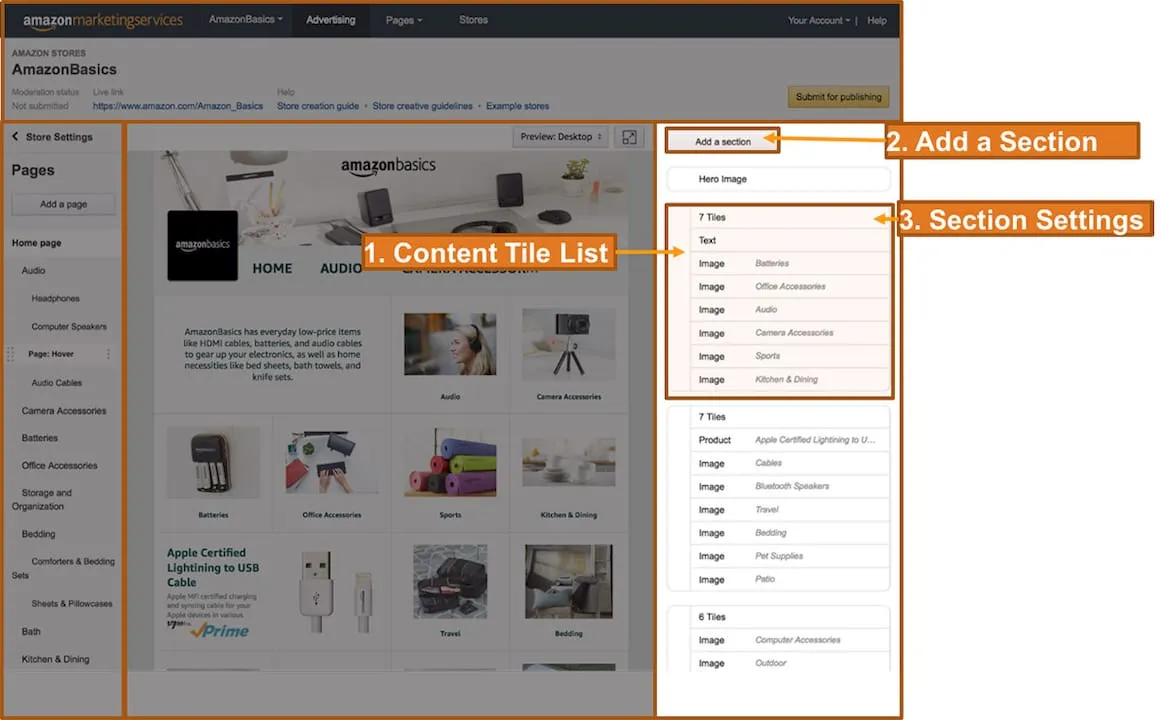
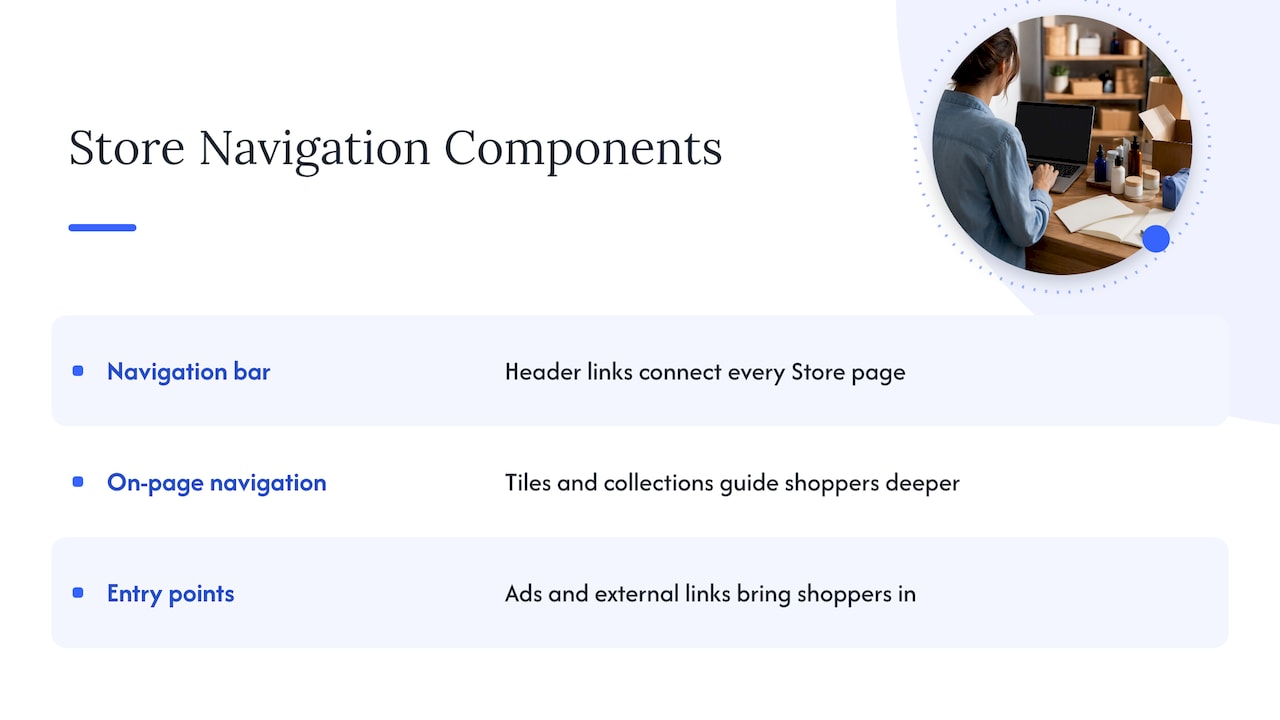
The navigation bar. This is the menu in your Store’s header. Per Amazon’s Stores creative guidelines, it appears under the hero image and contains links to every page in the Store. Amazon builds it automatically as you add pages, and the order of items follows the arrangement you set in the Store builder.
On-page navigation. These are the tiles, product collections, image links and featured product grids inside a page that send shoppers deeper. For most shoppers, these do more work than the menu, because they sit in the content they are already looking at.
Entry points. These are the ways shoppers get into the Store at all: the “Visit the [Brand] Store” byline on product detail pages, Sponsored Brands ads that point to a Store page, and external links from social or email.
A Store with a tidy menu but weak on-page paths and broken entry points still underperforms. Plan all three together.
How the navigation bar behaves on desktop and mobile
This is where many Stores go wrong, because the team designing it sits at a desktop monitor and the shopper is holding a phone.
Amazon’s guidance on setting up your Store above the fold describes the difference. On desktop, the navigation renders horizontally as a row of tabs. On mobile, it appears as a single vertical drop-down listing all pages and sub-pages. A shopper has to tap to open it, and long lists push the content they came for out of sight.
What that means in practice:
- Put your highest-value pages first. Amazon advises prioritizing top-level categories in the menu.
- Back the menu up with tiles. Amazon’s recommendation is to add image or text tiles at the top of the page so critical content is visible without expanding the menu.
- Keep labels short. A label that fits comfortably in a desktop tab can wrap or crowd on a phone.
- Preview both views. The Store builder lets you switch between mobile and desktop views, and a version for the other device is created automatically. Check that automatic version by hand rather than assuming it is right.
Keep the header itself uncluttered. Amazon’s Brand Store best practices warn that over-designed headers and heavy text hurt legibility on small screens. If your logo contains small tagline text, show that version only in the hero image and use a cleaner mark in the navigation bar.
Planning your page structure
The goal is a hierarchy a shopper can understand in about three seconds. Here is a process that works for most mid-market and enterprise catalogs.
1. Start from shopper intent, not your catalog
Internal product hierarchies usually mirror how a company manufactures or sources its goods. Shoppers think differently: “something for a small kitchen,” “refills,” “gifts under a budget,” “the same thing but for kids.” Pull your search term reports, review language and customer service questions, and group products the way customers describe them.
2. Choose three to six top-level pages
There is no official ceiling on how many pages the navigation can hold, but the mobile drop-down makes long lists a burden. A practical top level looks like this:
- Home (the logo handles this, so do not waste a tab on it)
- Your two to four largest categories or need states
- Best sellers or new arrivals
- A deals or seasonal page, when you have promotions worth featuring
- Brand story or sustainability, if it genuinely influences purchase
If you sell across very different categories, as with the brand owner in a community thread on Amazon’s own forum asking how to set up navigation for three product types, give each category its own top-level page and its own hero treatment rather than mixing everything on the homepage.
3. Use sub-pages only where they earn their place
Sub-pages are useful when a top-level category has real depth: a haircare brand might have a “Shampoo” page with sub-pages by hair concern. Beyond one level of nesting, shoppers get lost. If you find yourself wanting a third level, use filtered product collections on the page instead.
4. Use product collections for browsing depth
Amazon’s guide to organizing Stores with product collections explains how collections group products so browsing feels intuitive. They let you keep the menu short while still giving a shopper with a specific need a clean, scannable grid. Use collections for variations like size, scent, pack count or compatibility, and keep the navigation bar for the big decisions.
5. Respect the page limits
Every Store page carries a built-in header and needs at least one additional content tile. Each page can hold up to 20 sections in total. A page that approaches that limit is usually trying to do two jobs and should be split.
Naming and ordering your menu items
Menu labels are small, but they carry most of the weight.
- Use the shopper’s word, not yours. “Cold Brew Coffee” beats “Signature Series.” Save proprietary names for the page content.
- Lead with volume. Put the category that drives most of your sales first. Shoppers tend to scan left to right and tap early.
- Keep labels parallel. If one tab is a noun (“Blenders”), do not make the next a sentence (“Shop Our New Arrivals Today”).
- Avoid price claims in the menu. Amazon’s moderation rules for brand content restrict calling out specific discount percentages, and violations can lead to rejection and account-level penalties if repeated. A label like “Deals” is safe. “20% Off” is not.
Fixing the entry points
A perfect menu is wasted if shoppers cannot reach the Store. Two checks matter most, and both appear in Amazon’s post-launch checklist.
Check the brand byline link
Your ASINs may not link to the Store from the brand byline automatically, even after launch. Open several product detail pages and look for the “Visit the [Brand] Store” link. If it is missing, contact Seller Central or Vendor Central support with your Store link and the affected ASINs and ask them to connect the two.
Request a clean URL
Amazon generates a long, awkward URL when a Store launches. Amazon’s guidance is to request a short vanity URL (in the form amazon.com/brand-name) through support in your Seller or Vendor Central account. A clean URL is easier to use in packaging inserts, social bios, email and creator partnerships.
Point ads at the right page
Sponsored Brands campaigns can land on Store pages instead of a single product page. Send a shopper searching a category term to that category’s page, not the homepage. If you run these campaigns, our team’s guide to Amazon sponsored ads management covers how we think about the pairing, and the post on leveraging the full funnel in Amazon advertising explains where Store landing pages fit.
Common navigation mistakes
Too many tabs
A ten-item menu feels thorough on a 27-inch monitor and is a scroll-heavy list on a phone. Cut to the pages that matter, and move the rest into on-page tiles.
A menu that mirrors the org chart
Pages named after internal business units or product lines the shopper has never heard of. Rename around the customer’s need.
A homepage with no signposts
The hero image is beautiful, but nothing beneath it tells the shopper where to go. Add category tiles directly below the header so the first screen shows at least two or three clear paths.
Dead or stale pages
A “Holiday Gift Guide” tab still live in March signals a neglected Store. Amazon’s data on refreshes is worth taking seriously: Stores updated at least every 90 days see on average 11% more repeat visitors and 13% higher attributed sales per visitor than stagnant ones. Treat seasonal pages as scheduled work, not afterthoughts. Amazon’s seven-step guide to preparing for key shopping events suggests compiling deals on a dedicated page, which keeps your core menu stable while you rotate event content.
Skipping moderation time
Content updates go through review. Amazon’s moderation guide says campaigns, including Store content updates, should be submitted at least one week before launch. A menu restructure timed for a big sales event needs to be in the queue well ahead of it.
Imitating Amazon’s own interface
Custom tiles that look like Amazon’s native buttons or filters can be rejected. Design your own visual language, and keep it consistent across pages.
How to measure whether your navigation works
Navigation changes are easy to make and easy to misread. Build a simple measurement loop.
- Record a baseline. Before you change anything, capture visits, views per visit, sales and sales per visitor by page in Store insights.
- Look at traffic sources. Amazon launched enhanced traffic source insights for Brand Stores on October 1, 2025. They break out Amazon traffic (Sponsored Brands, Sponsored Display, brand byline) and external sources such as social and search. Shoppers from a Sponsored Brands ad behave differently from shoppers who clicked the byline, and your navigation should serve both.
- Change one thing at a time. Reorder tabs, then wait for enough traffic to compare. Changing the hero, the menu and the tiles in one go tells you nothing.
- Watch the pages, not just the Store. If a category page gets many views but few product clicks, the issue is on-page layout, not the menu.
- Separate paid from organic. A page that converts well for ad traffic may confuse byline visitors who arrive with no context.
For brands running several marketplaces, unified reporting matters here. Our iDerive analytics platform is built to put Store, advertising and marketplace data in one place so the navigation question gets answered against revenue, not just page views.
Our perspective: navigation is a merchandising decision
We see Brand Store navigation as merchandising, not web design. A Store is a small piece of retail real estate, and the menu is its signage. The brands that get the most from it decide what the Store is for before they open the builder.
Three convictions shape how we approach it:
- The Store is a landing destination for paid traffic first. For most mid-market and enterprise brands, the heaviest Store traffic comes from sponsored ads. That means the page structure should mirror your campaign structure: one ad group theme, one Store page that answers it. When navigation and ad architecture are planned together, the shopper never lands somewhere that feels off-topic.
- Mobile is the primary design, desktop is the adaptation. Because the mobile menu is a single vertical list, we write the top-level hierarchy for the phone first and check the desktop tabs afterward.
- Creative and structure belong in the same conversation. A menu label, the hero image and the first row of tiles are one message. Having photography, design and advertising under one roof means those pieces are briefed together rather than patched together after launch.
We would rather ship a four-tab Store that is plainly organized and refreshed on schedule than a twelve-tab Store that looks impressive in a presentation and loses shoppers on a phone.
— Dan Katona
Where Nectar can help
If your Store has grown by accretion and the menu no longer matches how your customers shop, we can audit the structure and rebuild it as part of a wider marketplace plan. Our Amazon Brand Store design service covers page architecture, in-house photography and design, and the on-page tiles that carry shoppers deeper. For brands that want the Store tied to advertising, operations and analytics, our Amazon growth and optimization program manages those pieces together. You can also read our walkthrough of Amazon storefront design steps for higher conversions.
A launch checklist for your navigation
Use this before you publish a restructure.
- Three to six top-level pages, each named in shopper language.
- Highest-volume category first.
- Mobile preview checked page by page, including the automatically generated version.
- Category tiles directly below the hero on the homepage.
- Logo version in the nav bar is legible at small size.
- No numerical discount claims or lookalike Amazon interface elements.
- Collections used for variations instead of extra menu levels.
- Brand byline link verified on a sample of ASINs.
- Vanity URL requested.
- Submitted for moderation at least a week before any key date.
- Baseline metrics recorded and a review date set within 90 days.
If you are still building the Store from scratch, Amazon’s own step-by-step setup guide for sellers walks through the Brand Registry and builder prerequisites.
FAQ
How do I add or change the navigation bar on my Amazon Brand Store?
You do not edit the bar directly. Amazon generates it automatically as you add pages in the Store builder, and the order of pages sets the order of the menu. To change it, add, rename, reorder or remove pages in the builder, then submit the Store for review.
How do I find someone’s storefront on Amazon?
Open any product from that brand and click the “Visit the [Brand Name] Store” link under the product title. If the link is missing, the brand may not have connected its ASINs to its Store. You can also search the brand name and look for a Sponsored Brands result that points to the Store.
Why does my navigation look different on mobile?
On mobile, the horizontal tab bar becomes a single vertical drop-down listing all pages and sub-pages. That is by design. Preview the mobile view in the builder and put the most important pages at the top of the list.
How often should I update my Store navigation?
Review it at least every 90 days. Amazon’s data links updates at that cadence to more repeat visitors and higher sales per visitor. Rotate seasonal pages in and out, and retire anything that has gone stale.
How do I get more traffic to my Amazon storefront?
Start by making sure the brand byline links to the Store on all your ASINs. Then point Sponsored Brands campaigns at relevant Store pages, and share your vanity URL on social, email and packaging. Use the traffic source insights to see which channels send the most engaged shoppers.
Sources
- Stores creative guidelines, Amazon Ads
- Setting up and optimizing your Brand Store above the fold, Amazon Ads
- Six tips to optimize your Brand Store for mobile, Amazon Ads
- A comprehensive guide to successful Brand Stores, Amazon Ads
- Organize Brand Stores with product collections, Amazon Ads
- A complete guide to Sponsored Brands and display ads moderation, Amazon Ads
- How to open your Brand Store on Amazon, Amazon Ads
- Seven steps to prepare your Brand Store for key shopping events, Amazon Ads
- Enhanced Brand Store sources insights, Amazon Ads
- Creating an Amazon storefront (Brand Store), Sell on Amazon
Recommended


















.png)