An Amazon catalog flat file is a spreadsheet template that lets you create or change many product listings in one upload instead of editing them one at a time in Seller Central. For a brand with hundreds or thousands of SKUs, the file itself is the easy part. The hard part is the discipline around it: the right template, the right operation on every row, clean data from a single source, and a check of the processing report afterward. A brand that treats the flat file as a catalog operations process, not a one-off chore, rarely overwrites live content by accident. That is how we run it for the brands we manage on Amazon.
This guide walks through the full routine for US sellers: when to use a flat file, where to get the current template, how to fill it, how to upload it, and how to read the errors that come back.
TL;DR
- Flat files are spreadsheets for bulk listing creation and edits. Download a fresh template from Seller Central for each product type, every time you upload.
- Set the operation on every row on purpose. A full update can erase live content wherever your cells are blank.
- Test with a small batch first. Amazon recommends 15 or fewer products before you upload the rest.
- Download the processing report from Monitor Upload Status and fix errors by code, not by guesswork.
- At enterprise scale, keep product data in one master source and treat the flat file as an output, so a template change means updating one mapping.
What a catalog flat file is, and when to use one
A flat file is an Excel workbook (.xlsx) built by Amazon for a specific product type. Each row is a SKU. Each column is an attribute: title, brand, bullet points, images, dimensions, identifiers, variation settings and so on. Amazon’s own guide describes these inventory file templates as spreadsheets where you enter product data and upload listings through the Add Products via Upload page. Which attributes are required, and which are available, varies by product type.
Flat files earn their place in four situations:
- Launching many new products at once, such as a new line or a full catalog migration to Amazon.
- Changing content across many listings, for example rewriting titles for a rebrand or adding a compliance attribute.
- Building or repairing variation families, where parents and children must line up exactly.
- Auditing the live catalog, by pulling existing data into a file, correcting it and sending it back.
For a single listing or a handful of edits, the Seller Central editor is faster. For daily price and quantity changes, a lighter inventory loader file is usually the better tool, because it only touches offer data. Flat files with hundreds of columns are for content and catalog structure.
If your brand sells as a vendor (1P) rather than through a seller account, catalog changes often run through a different workflow. Our Vendor Central management team handles that side; the rest of this guide covers seller-account (3P) uploads.
How to download the right template
The wrong template is the most avoidable cause of failed uploads. The path in a US seller account looks like this:
- In Seller Central, open the Inventory menu and choose Add Products via Upload.
- Choose the option to download an inventory file.
- Search for your product type and select the US marketplace.
- Pick the columns you want: required only, required plus recommended, or a custom set.
- Generate the template and save the workbook.
Menu labels shift as Amazon updates Seller Central, so follow the on-screen wording if it differs slightly from the steps above.
Two habits matter more than the click path.
Download a new template for every upload session. Amazon changes fields, valid values and validation rules over time, and a template saved last quarter can fail today. Keep one master data source, not a folder of old workbooks.
Use the template that matches the marketplace. A US file uses US units and formats. Amazon.com and Amazon.de templates are not interchangeable, and a file built for another marketplace can fail on units, dates or accepted values.
To edit listings that already exist, start from a report of live data instead of a blank template. Seller Central’s inventory reports, such as the Category Listings Report and the Active Listings Report, give you current values to edit and send back. Starting from live data means you change only what you meant to change.
What is inside the workbook
A generated template has several tabs. Three matter most.
- Template: where you enter listing data, one SKU per row.
- Data Definitions: explains each field and marks it required or optional. Amazon notes that required fields need valid values, and additional data may be required depending on what you enter elsewhere.
- Valid Values: the accepted entries for fields with controlled vocabularies, such as color maps, department or unit of measure.
Treat Valid Values as law. If a field has a controlled list, a near match such as “Navy Blue” where the list says “Blue” is a rejected value or a lost attribute.
How to fill out the file without breaking live listings
This is where catalog teams earn their keep. Work through these in order.
1. Decide the operation for every row
The update_delete column tells Amazon what to do with each row. In practice there are three behaviors:
- Update replaces the whole record. Any blank cell you leave can wipe the live value.
- PartialUpdate changes only the fields you filled in and leaves the rest.
- Delete removes the SKU’s offer.
For existing listings, PartialUpdate is the safer default, with Update reserved for new listings or a deliberate full refresh in which every field is populated. Never leave the column blank on a row and hope for the best. Amazon’s current behavior for each value is documented in the Data Definitions tab and Seller Central help, so confirm it there before a large run.
2. Get identifiers right
Every product needs a valid product identifier (UPC, EAN, GTIN or ISBN, depending on the category) or an approved exemption. Match the identifier to the right product and variant. Mismatches between your identifier and the catalog’s existing record are behind some of the most common rejections, covered below.
3. Build variations carefully
Variation families fail when parent and child rows disagree. The rules in outline:
- The parent row has its own unique SKU, a parentage value of parent and a valid variation theme.
- Each child row points to the parent’s SKU, has a parentage value of child and a relationship type of variation.
- Every child in the family uses the same variation theme as the parent, and each child’s theme attributes (for example size and color) are filled in.
The template’s Check Your File feature, per Amazon’s guide, can identify common errors and configure variations. Variations also interact with Amazon’s policy, so it is worth reading our variation policy audit steps before you restructure a family that has sales history.
4. Format values the way the template expects
- Enter prices as plain numbers, not with currency symbols.
- Use the date format and units your template and marketplace expect.
- Keep text within field limits and avoid HTML in descriptions. Amazon’s feed-error guidance lists error 90122 for HTML content in a product description.
- Strip hidden spaces, smart quotes and stray line breaks that come from pasting out of other systems.
5. Write content for classification, not only for shoppers
Titles, bullets and descriptions are not just conversion copy. Industry reporting on a February 26, 2026 change to Amazon’s browse tree guide says Amazon now leans on title, bullets and description to classify products, and that some listings fell out of alignment with their categories. If a bulk upload moves products into the wrong node, the copy may be the cause as much as the browse node field. Our step-by-step content optimization guide covers how to write copy that does both jobs.
Upload and verify, step by step
- Run a pre-upload check. Use the Check Your File option on the Add Products via Upload page to catch missing required values and formatting problems.
- Test with a small batch. Amazon’s guidance is to test with 15 or fewer products and upload the rest only after a clean result. Choose a few SKUs that represent the odd cases: a variation parent, a product with dimensions, a product in a gated category.
- Upload the full file. Submit it from Add Products via Upload.
- Wait for processing. Large files can take a while. Do not re-upload while a file is still processing, since duplicate submissions create confusing overlaps.
- Download the processing report. Open Monitor Upload Status and download the report. Errors appear there row by row.
- Verify on the detail pages. A file can process without error and still publish something you did not intend. Spot-check titles, images, variation display and category on a sample of live detail pages.
- Archive the report. Save your processing reports with the file version that produced them so you can trace a problem later.
Images deserve their own check. Flat files take image URLs, and Amazon fetches them at processing time, so a broken link or an undersized image can leave a listing without media. Our Amazon image requirements checklist lists what to confirm before the URLs go into the file.
Common errors and what they mean
Amazon publishes a guide to resolving common feed errors. These are the ones that most often stall brand uploads.
8541: product ID matches an existing ASIN, but your data differs
The barcode you submitted corresponds to an existing product in the catalog, and your attributes do not match that record. A frequent cause is a barcode that was reused. Amazon’s document gives apparel as an example, where manufacturers recycle barcodes after a few years. Check that the identifier really belongs to your product, then align your attributes with the correct record or correct the identifier.
8542: product ID tied to multiple ASINs
The identifier is associated with two or more ASINs, and your title, brand, color or size match none of them. Clean up the attributes so they match one specific product, or use the correct identifier for that variant.
8026: category authorization required
You are trying to list in a category that needs approval. The file is not the problem. Approval for the category has to be in place before the upload will work.
8560: data does not meet ASIN creation requirements
Required attributes are missing or invalid, so Amazon cannot create the product. Go back to the Data Definitions tab and complete every required field for that product type.
90122: HTML in the description
Remove HTML tags from the description field. Plain text only.
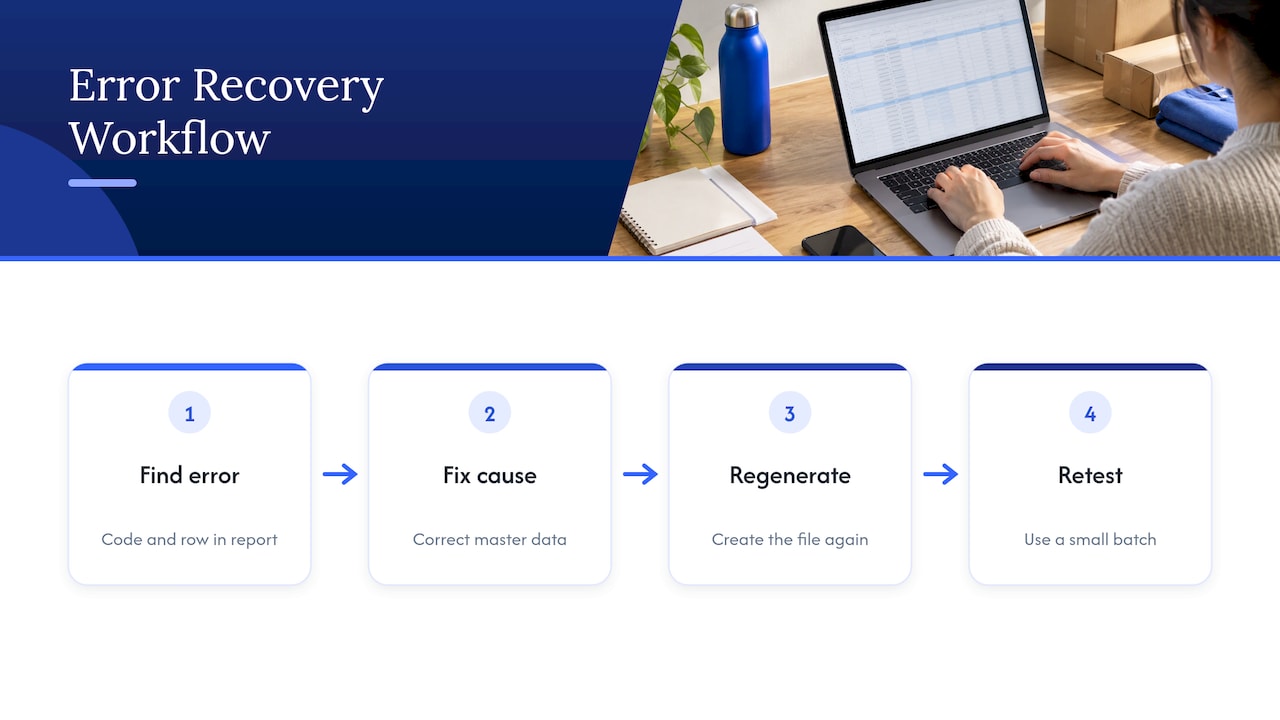
A working rule for any error: find the code and row in the report, fix the root cause in your master data, regenerate the file, and re-test on a small batch. Patching only the spreadsheet means the same error returns on the next upload.
What has changed recently
Two changes affect how brands should plan.
First, Amazon has been moving programmatic listing management away from legacy formats. Its developer documentation announces the deprecation of XML and flat file listings feeds in the Feeds API in favor of JSON-based Listings Items APIs. That affects integrations that send flat files by API. Manual uploads through Seller Central are a separate path, and they are the workflow described here. If your team or a connected tool still submits flat files through the API, confirm with your integration owner that it has migrated.
Second, Amazon’s category structure and attribute requirements change from time to time, as the browse tree update above shows. That is the practical reason to download a fresh template before each upload and to schedule periodic catalog audits instead of assuming a clean upload stays clean.
Running flat files across a large catalog
Below a few dozen SKUs, a spreadsheet and a careful person can manage. Past a few hundred, with several marketplaces, regions and product lines, spreadsheets become the weak point. A workable structure for enterprise catalogs:
- One master source. Keep product data in a single system of record, whether that is an ERP, a PIM (product information management) tool or a governed spreadsheet. Amazon’s workbook is never the place where data lives.
- A mapping layer. Translate your master fields into each Amazon product type’s columns. When Amazon changes a requirement, you update the mapping once.
- Validation gates before upload. Check required fields, formats, controlled values, parent-child consistency and obvious anomalies such as a price off by a decimal place or a missing main image.
- A change log. Record who uploaded which file, when, and what the processing report said.
- Test batches. Follow Amazon’s own guidance and send a small sample first.
The costly pattern is uploading first and debugging afterward. A wrong price or an empty field on a top ASIN costs sales within hours, and no processing report undoes that.
Where we come in
Brands usually come to us when flat files have turned into a bottleneck: uploads stuck on the same errors, variation families that split, content that regressed after a bulk edit, or a catalog too large for one person to hold in their head. Our Seller Central management team runs catalog, inventory and compliance operations for 3P accounts, and our marketplace operations management covers the day-to-day work behind them. If catalog quality is part of a wider growth plan, Amazon Growth & Optimization pairs that operational work with content and advertising.

Because our creative studio produces photography, video and PDP content in-house, the images and copy that go into a flat file can come from the same team that manages the upload. See Creative & Content Production for what that covers. Prefer to start with a broader review? Our Strategic Consulting & Audits service looks at the catalog before anything is uploaded. You can reach us through thinknectar.com.
Our perspective
Most flat file problems are not file problems. They are data ownership problems. When no one owns the master record for a product, the spreadsheet becomes the record, and every Amazon template change turns into an emergency.
We push brands to treat the flat file as the last step of a process: clean source data, a mapping to Amazon’s fields, validation, a small test, then the full upload. It is slower on day one and much faster by month three.
The second thing we hold firmly is that catalog work and growth work belong together. A correctly classified, correctly varied listing with strong images and copy converts better and gives advertising a stronger page to send traffic to. That is why we manage operations, creative and media under one roof, and why our analytics platform, iDerive, puts catalog and performance data in the same view.
Dan Katona
FAQ
Do I need a flat file to list products on Amazon?
No. You can add products one by one in Seller Central. Flat files make sense once you are creating or editing many listings, or when you need to repair variation families or run a catalog-wide content change.
Should I use an old flat file I already filled out?
No, download a new template each time. Amazon changes fields, valid values and validation rules, so a saved workbook can reject rows that worked before. Keep your data in a master source and move it into the fresh template.
How do I find out why my upload failed?
Open Monitor Upload Status in Seller Central and download the processing report. It lists errors by row and code. Match each code to its cause, such as 8541 for a product ID that conflicts with an existing ASIN, then fix the underlying data and re-test with a small batch.
How many products should I test before a full upload?
Amazon recommends testing with 15 or fewer products and uploading the remainder after a successful test. Include a variation parent and a few edge cases so the test shows the problems a full run would hit.
Can I still send flat files through the API?
Amazon has deprecated XML and flat file listings feeds in the Feeds API and points developers to JSON-based Listings Items APIs. Manual uploads in Seller Central are a different workflow. If an integration submits flat files by API, ask whoever maintains it about migration.
Sources
- Using your Inventory File Template (Amazon)
- How to resolve common feed errors (Amazon)
- Deprecation of Feeds API support for XML and Flat File Listings Feeds (Amazon developer documentation)
- Billion Dollar Sellers Network, June 29, 2026
Recommended